
Deploy
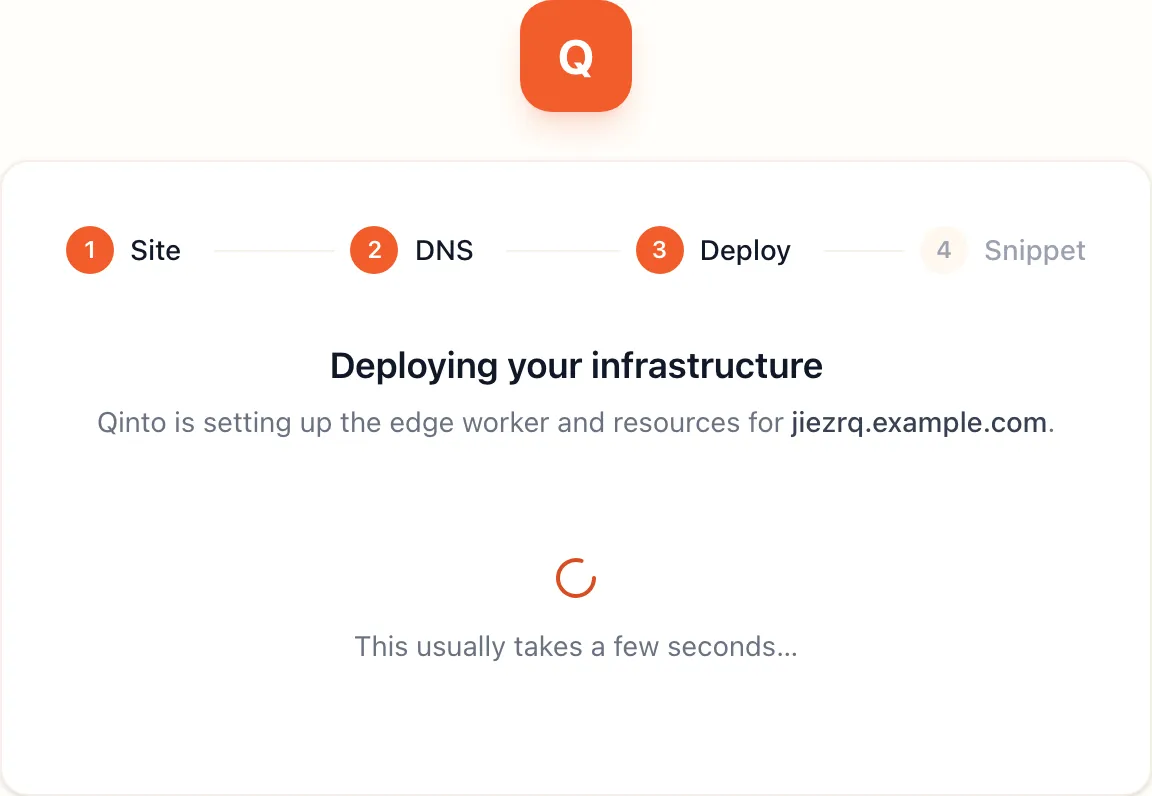
The Deploy step starts as soon as you select Continue on DNS. There is nothing to fill in. The platform provisions the site’s infrastructure and moves to the snippet when it is done, usually within a few seconds.
What runs
Section titled “What runs”Every site is its own Cloudflare Worker. Deploying is building that worker for your site and uploading it.
- Read the site. The platform loads the hostname, the hosting mode, the jurisdiction and region, and the host credentials from its vault, Blotout’s for a managed site and your token for a self-hosted one.
- Build the worker. It takes the released site worker bundle and binds it to this site: three Durable Object classes that hold the ID graph, one for visitors, one for people and one for the identifiers that link them; the site’s worker access tokens as a secret; the bot protection setting; and the jurisdiction and region, which Cloudflare applies when it creates the objects.
- Upload it. A managed site is uploaded into a dispatch namespace in Blotout’s account, where a router sends each request to the worker named for its hostname. A self-hosted site is uploaded as a Worker in your account, named after the hostname.
- Wire the hostname. On a managed site the router already answers for every custom hostname, so there is nothing to add. On a self-hosted site the platform adds a route from the first party hostname to the worker, or attaches the worker directly to the hostname when the root domain is the host’s own zone. If you chose the Qinto URL, that hostname is wired as well.
- Record it. The site turns active, stores the worker version it runs, and writes a “site deployed” entry to the team’s activity log.
The worker is the only thing that serves your traffic. The platform itself is never on the request path, so a deployed site keeps collecting events if the platform is down.
Later deploys
Section titled “Later deploys”The same deploy runs again whenever the worker needs to change: you install or remove an app, change a setting under Settings → Capturing data or Privacy & Security, create or revoke a worker access token, or Blotout releases a new worker version. Each run uploads a new version and Cloudflare switches traffic to it with no downtime. A failed deploy leaves the previous version serving.
If it fails
Section titled “If it fails”The step shows the error and a Retry deployment button. A deploy is safe to repeat, so retry first. The errors you can fix yourself:
- A self-hosted token that is missing a permission. The message names the Cloudflare product. Edit the token in the Cloudflare dashboard with the list under Hosting.
- A self-hosted host with no zone chosen. Pick one under Team → Hosts.
- Cloudflare rate limiting, which the message says to retry in a minute.
Anything else is on the platform’s side. Contact support with the hostname and the time.