
Snippet
The site is deployed. The last step asks you to choose how your pages will send events to it. The three tabs are three ways to run the same client against the same site, so pick by where your site’s code lives, not by preference.
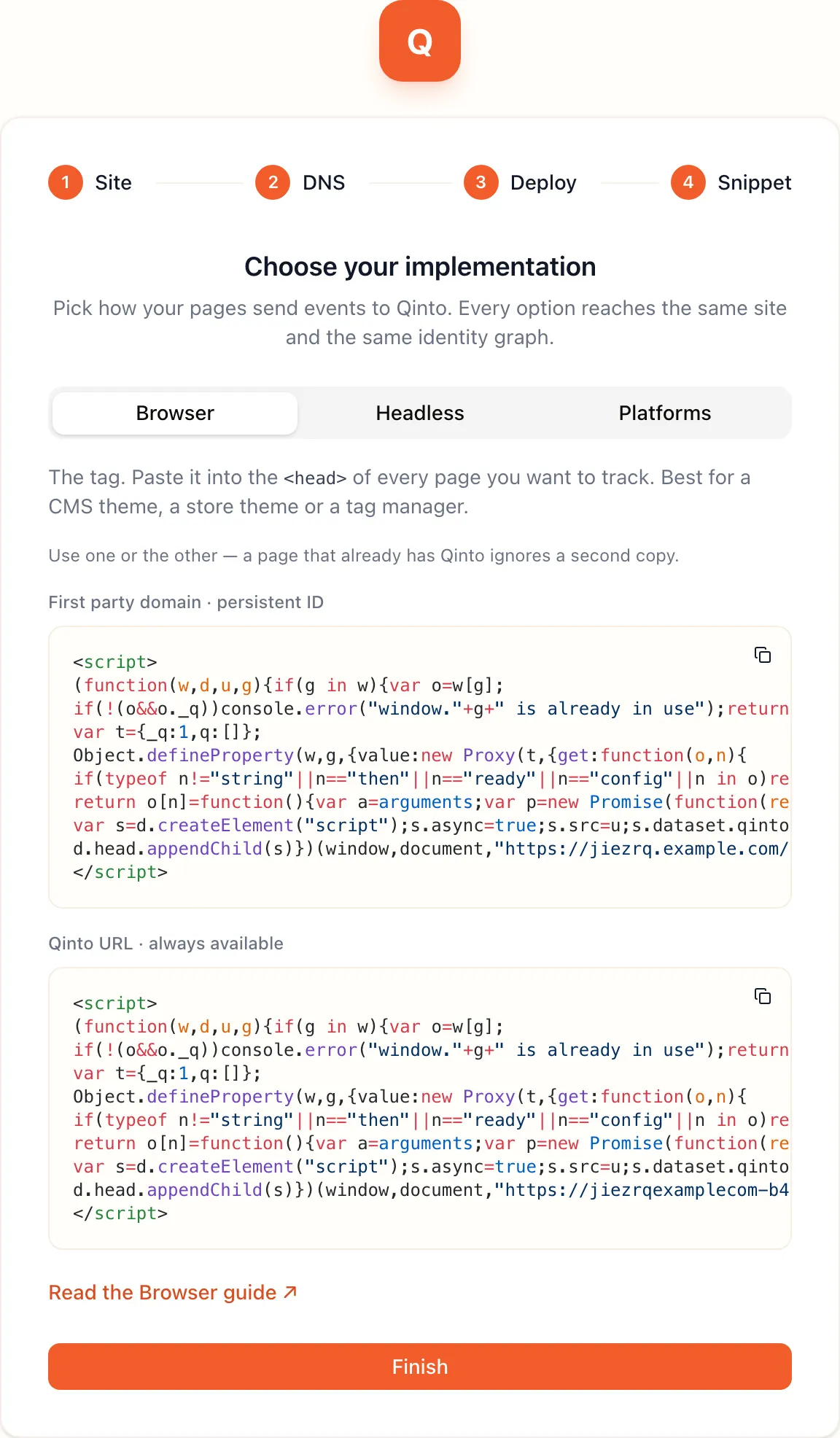
Browser
Section titled “Browser”The tag. Copy the snippet with the button in the corner of the code block and paste it into the <head> of every
page you want to track, as high as you can. Paste it once per page. The snippet binds window.qinto, loads
/q.js from your first party hostname and opens one connection for the page. A call you make before the script
has loaded is queued and sent in order, so you never wait for a load event.
Choose this for a site whose JavaScript you do not build yourself: a CMS theme, a store theme, a marketing site,
or a site that loads scripts through a tag manager. Browser explains what the
tag does, its settings and the window.qinto API.
Headless
Section titled “Headless”The same client as an npm package, @blotout/qinto-sdk-browser, for a site that ships its own bundle: a
single-page app, a framework app, a headless storefront or a TypeScript project. The tab shows the install
command and an init call with your site’s host as the destination. Call it once where your app starts, then
import track, identify, alias and consent from any module.
Choose this when you want typed imports and control over when the client loads. Headless
covers init and its options, single-page apps and server rendering.
Platforms
Section titled “Platforms”A hosted platform has its own setup. The tab links to the guide for each one: Shopify and WordPress. On another platform, use the Browser snippet through its theme editor or tag manager.
Which host the code points at
Section titled “Which host the code points at”The Browser and Headless tabs name the host your site is served on, from the DNS step. A site on the First party domain shows two blocks, one for the first party hostname and one for the Qinto URL, labelled “persistent ID” and “always available”. Use one or the other. The Qinto URL works right away, and the first party one works once DNS verifies. A site on the Qinto URL shows that host alone, with an amber line: “Qinto URL — set up a first party domain in Settings for a persistent ID.” Use it for development and testing, and switch to the first party host before your website goes live, because only a cookie on your own domain survives between visits in Safari and private windows.
Select Finish to open the site’s overview.
Find it again
Section titled “Find it again”Settings → Capturing data shows the Browser snippet for the life of the site. While the site is on the Qinto URL it shows that one snippet. Once you move the site to the first party domain under Settings → DNS, it shows both, so you can start on the Qinto URL today and swap the tag in your pages after DNS is done.
What to do next
Section titled “What to do next”Start with page views. With the tag, turn on Page load under Settings → Capturing data and it records a
PageView on every load. The package ignores that setting, so with Headless call track('PageView') yourself,
on the first render and on every route change. Everything else is a call from your code, and the Implementation
section covers each one on every surface:
- HTTP is the
/v1API for your servers, with the server SDK. - User data, Consent and Standard events are the calls to make from the page or the server.
Check a page in the browser’s network panel. One /q.js response and one /open WebSocket on your host mean the
site is live, and Analytics → Real time in the platform lists the events as they arrive.